How to do logging in Logflare
You just add your domain in InfinityFree and configure Cloudflare, it’s awesome. But seeing just a few charts on the CF dashboard may confuse you. This guide explains how to configure Logflare, get to know where your visitors are from, and what browser they’re using.
-
Sign up for Logflare in here > Logflare | Cloudflare, Vercel & Elixir Logging
You can use Google SSO, GitHub SSO, or traditional email and password creds
-
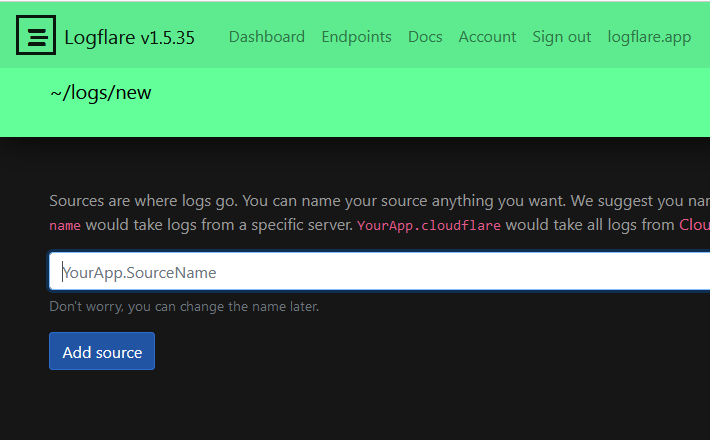
Once you’re in the Logflare dashboard, click
New source, and name itYourDesiredName.all
-
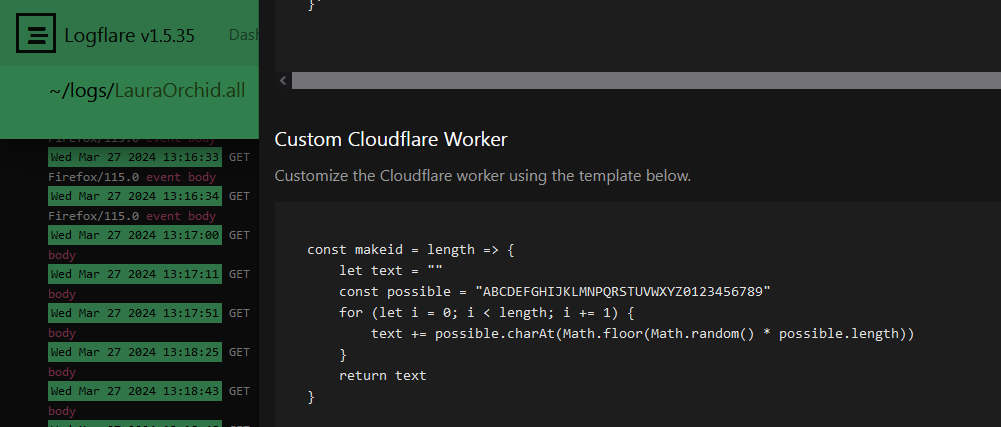
Your log source is created, and the
Send logs to this sourcepopup will show up. Scroll down until you’re on theCustom Cloudflare Workersection. Copy the worker code for later.
-
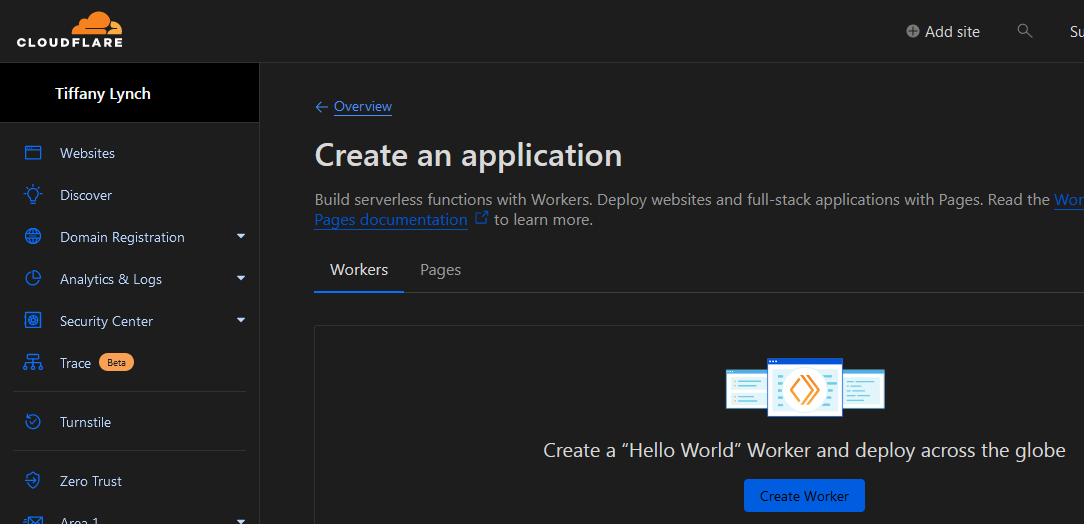
Open the Cloudflare dashboard and head to
Workers and Pages. -
In case you don’t have existing workers, click
Create worker.
-
You may change the worker name first, and click
Deploy.
-
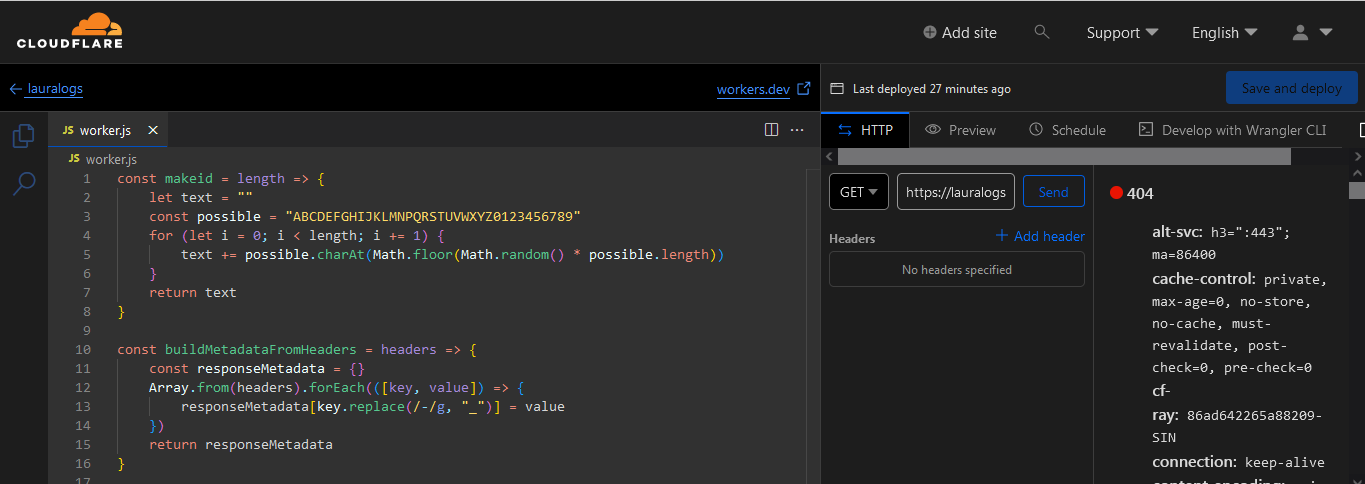
Once your worker is created, click
Edit code.
-
Remove the existing code for
Hello world, paste the worker code you get earlier from Logflare, and clickSave and deploy.
-
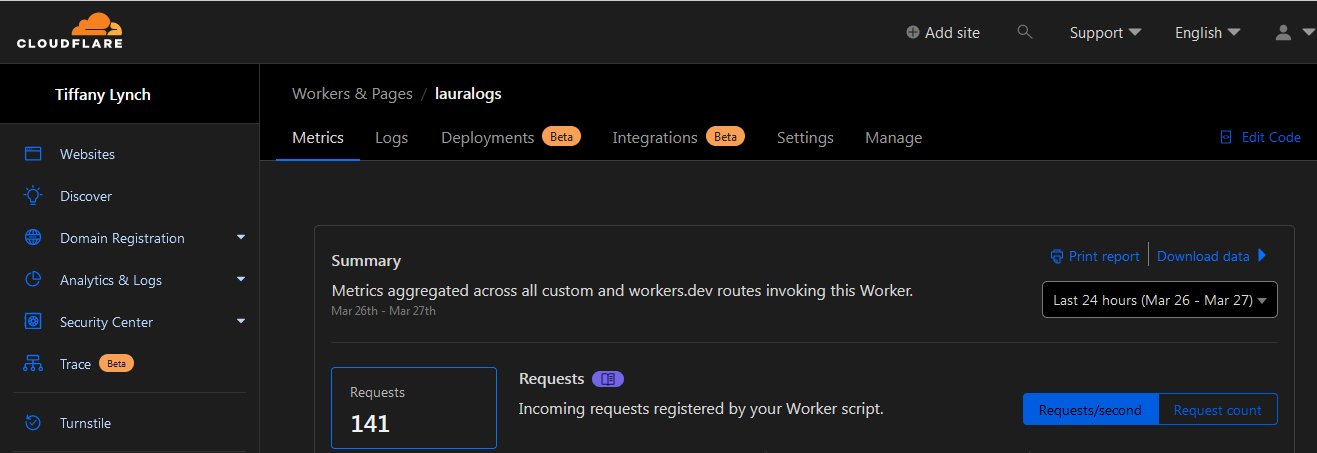
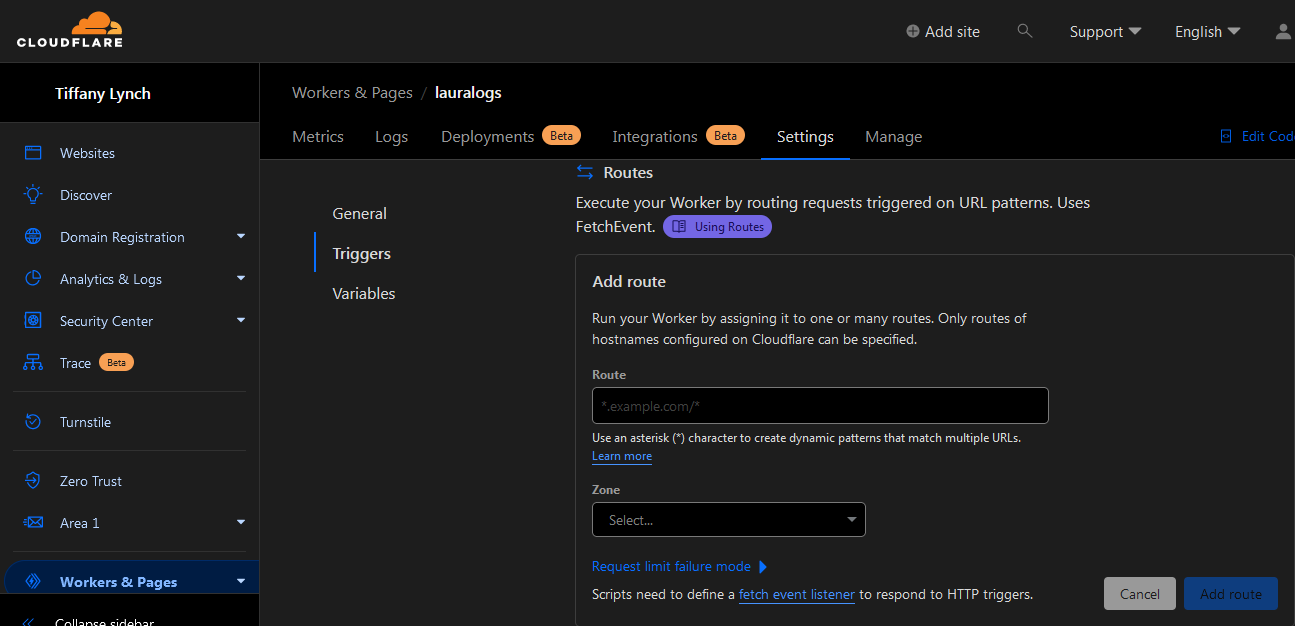
Go back to your worker’s Overview, and click
Settings. -
Click
Triggersand scroll to theRoutessection.
-
Click
Add route, enter*.yourdomain.com/*on theRoutefield, select your CF zone that corresponds to your domain, and clickAdd route. -
Happy logging!