Sick of this nagging notification at the top of your WordPress dashboard?
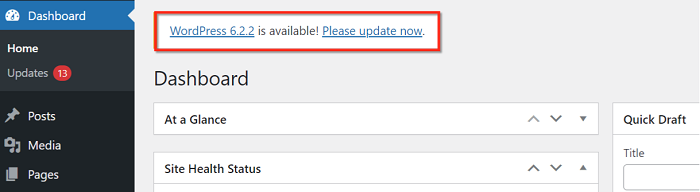
I’ll guide you on how to install and update WordPress manually, but in a much easier fashion, by uploading its zip archive and extracting it in the file manager without extracting the archive on your computer and uploading all of the files one by one. Let’s dive in.
How to Install WordPress manually
-
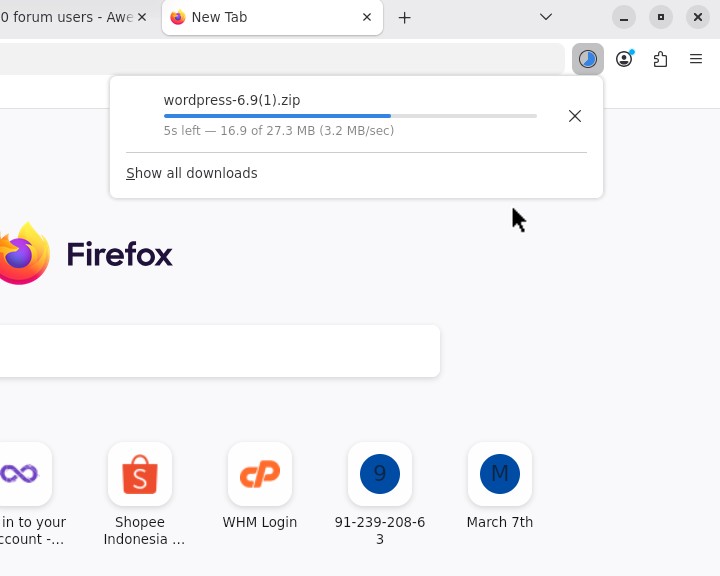
Download WordPress from https://wordpress.org/latest.zip
-
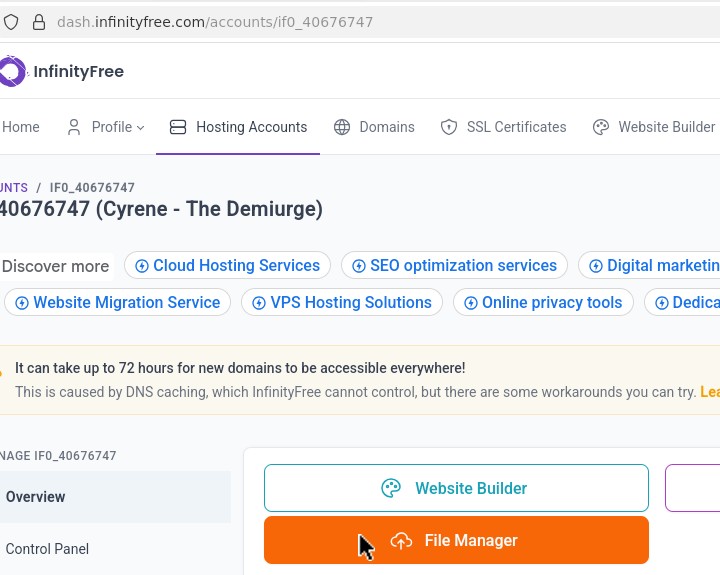
Open the file manager from the InfinityFree client area.
-
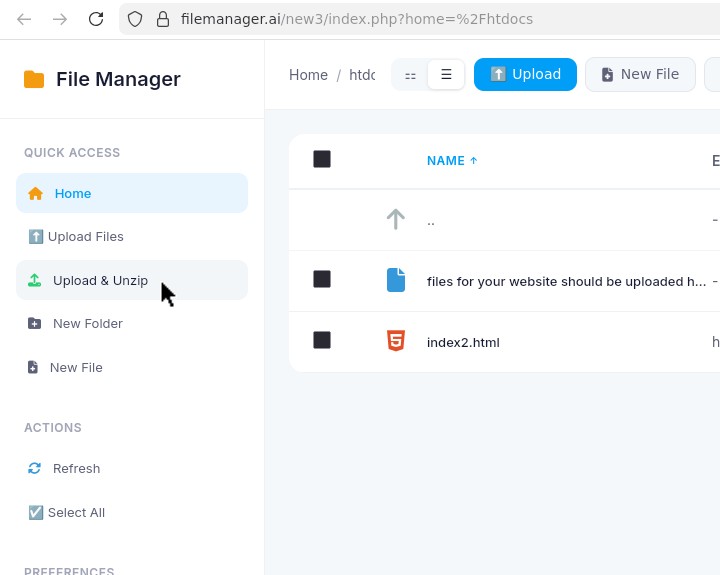
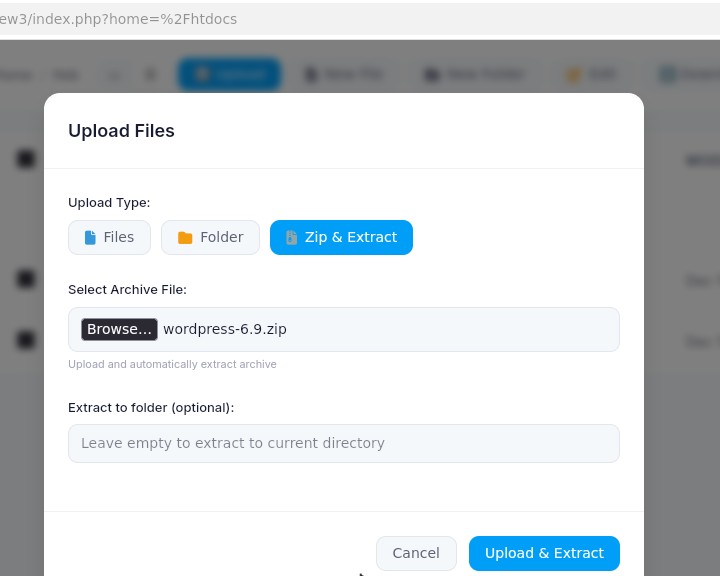
Navigate to your website’s directory, and click upload & unzip.
-
Select the downloaded zip file, then click Upload & Extract.
-
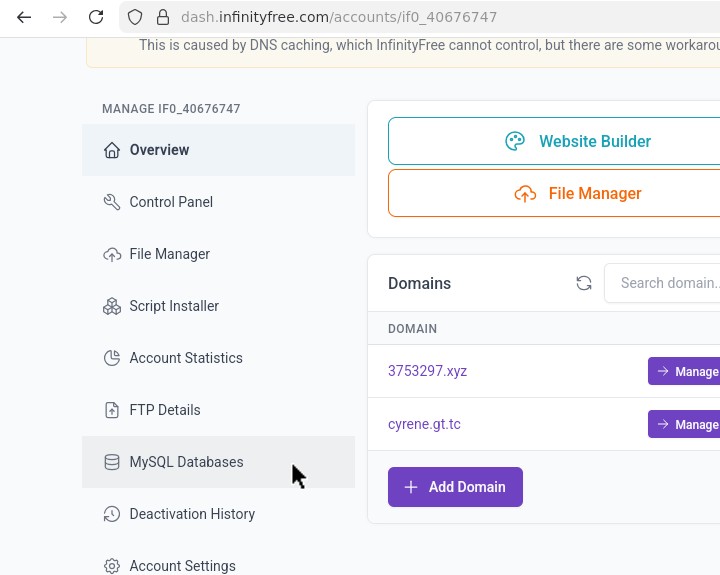
Before installing WordPress, we need a MySQL database. Go to your client area tab, and find MySQL Databases.
-
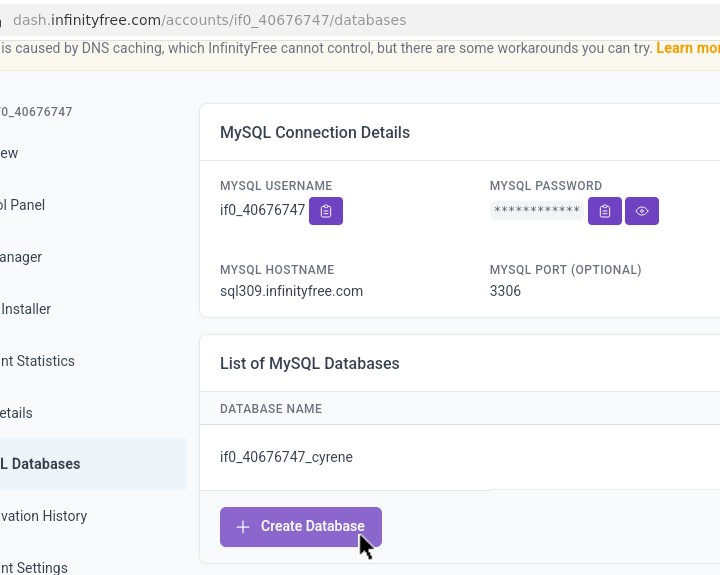
Click Create Database.
-
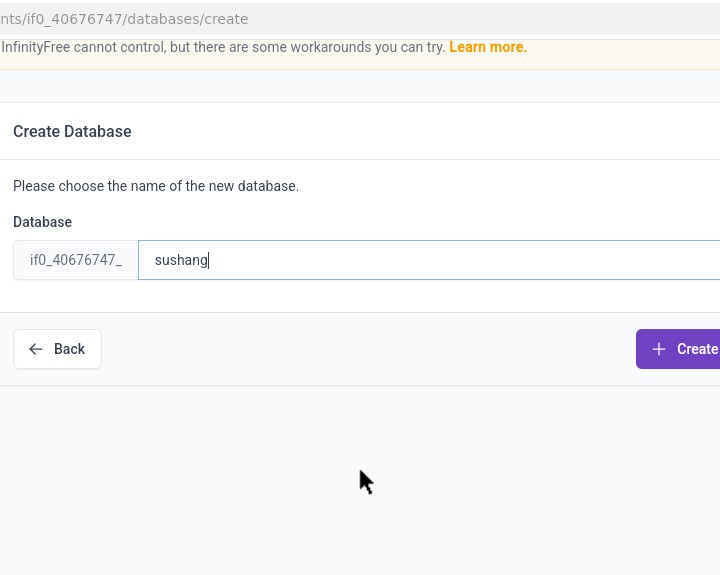
Fill in a name you want for the database name, then click Create Database.
-
The MySQL database is ready. Go back to the File Manager tab, navigate to the
wordpressdirectory, and select every item by clicking on a checkbox at the very top. -
Click the more button, then Move.
-
Double click on Parent Directory till you reach
Root/htdocsorRoot/example.com/htdocs, scroll down, and click Move. -
Now you’re ready to install WordPress. Open your website in a new tab, and you should see a WordPress setup page. Select your language, and click Continue.
-
Click Let’s go!
-
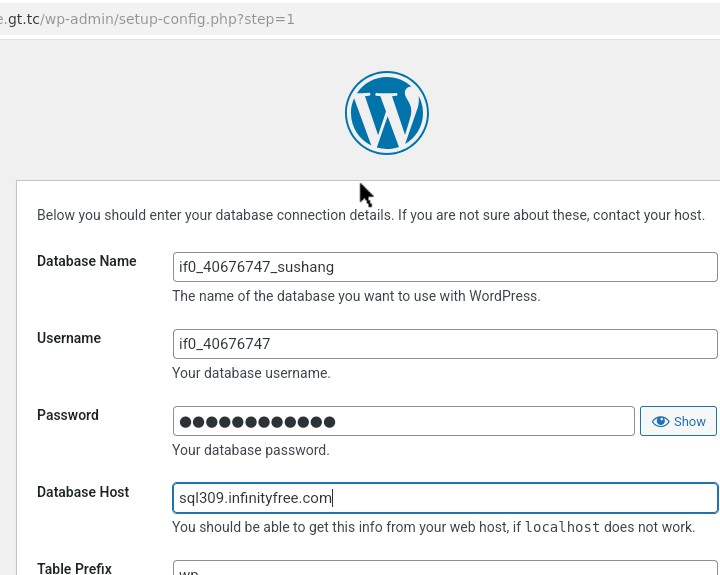
Consult the client area to provide MySQL database credential details for WordPress setup, and click Submit.
-
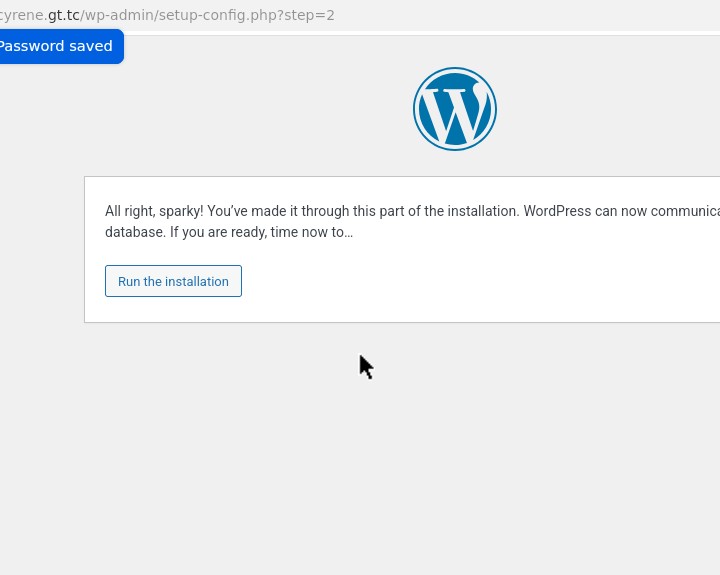
Click Run the installation.
-
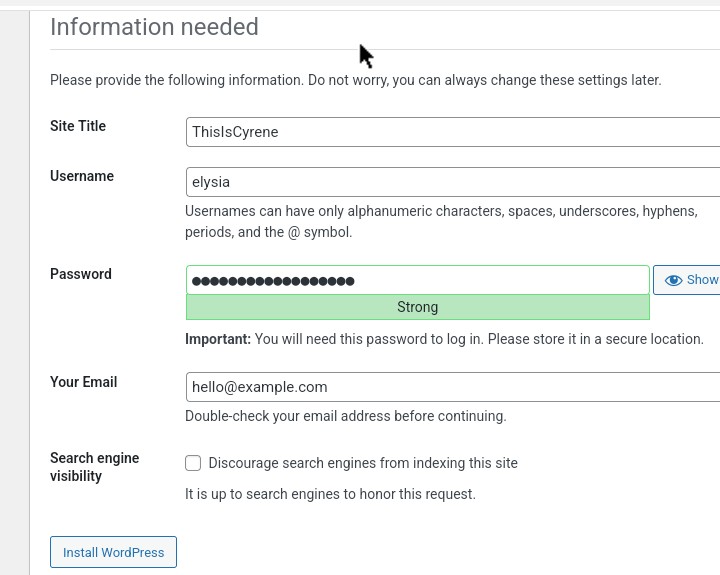
Provide the required information (and make sure to save/copy the auto-generated password), and click Install WordPress.
-
Click Log in, use the credentials you just made, and enjoy!
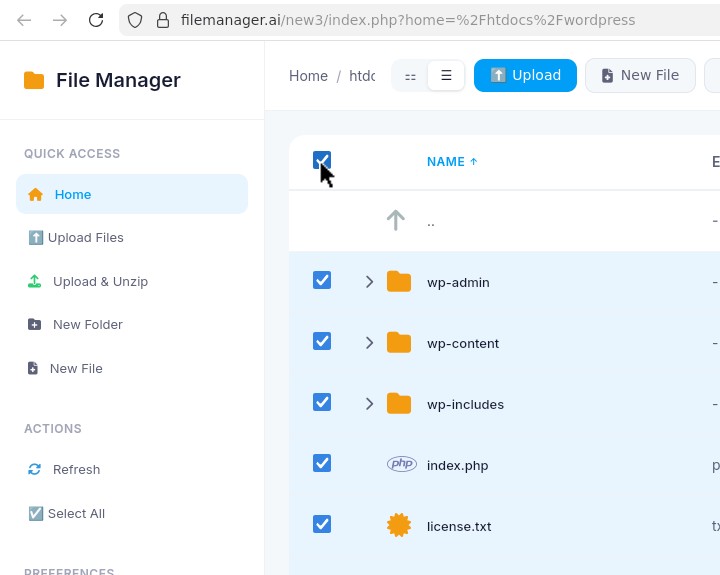
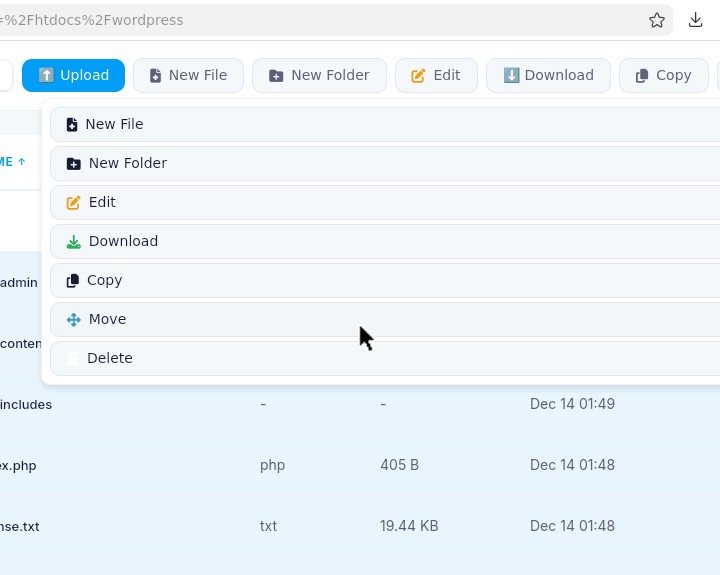

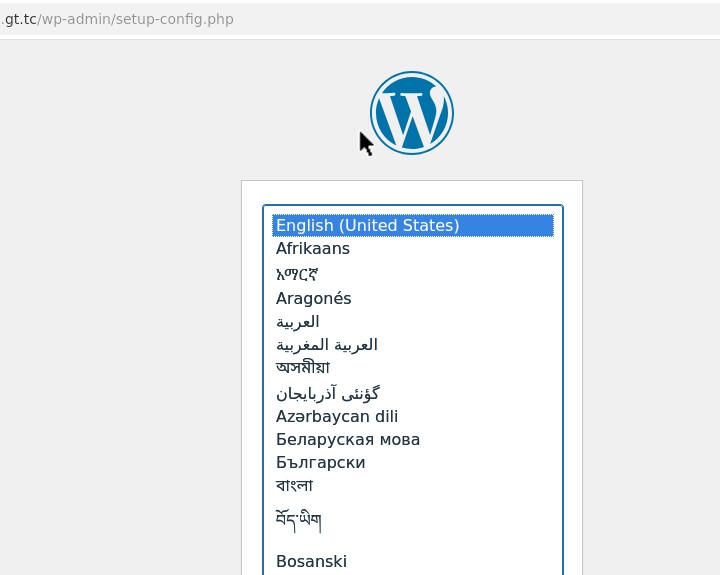
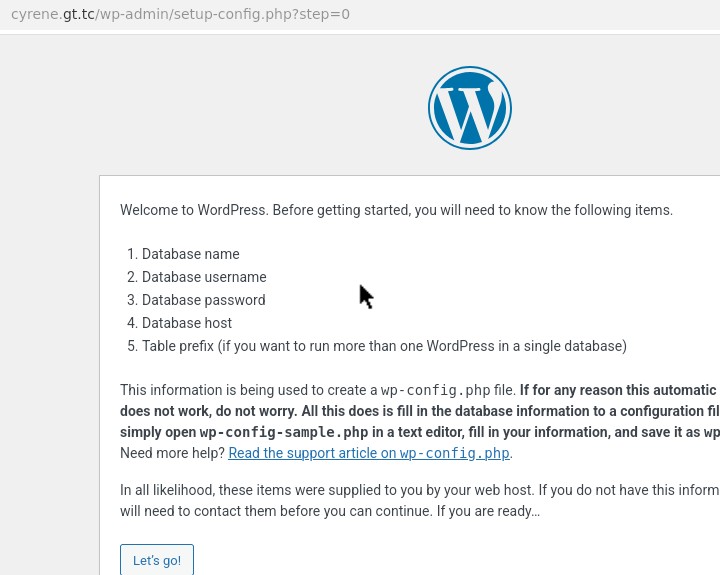

But what about updating it?
Follow the same steps above, except steps 5-7, up until step 11, with a database update as prompted, using the WordPress archive from https://wordpress.org/wordpress-6.9-no-content.zip. (Latest version at the time of writing.) Why? Because the no-content version of WordPress archive doesn’t have the wp-content directory, and you want to make sure that your wp-content directory, which contains your themes, plugins, posts, and pages, doesn’t get overwritten with the ones from the zip archive.
If you have any questions, just reply to this post down below. 