Cache never gets cleared?

Website URL

atxzproject .com/txzgdps/download

I bought my domain in Cloudflare and I host my website in InfinityFree. Lately, when I want to apply changes to my website, it doesn’t apply the changes, like, never?

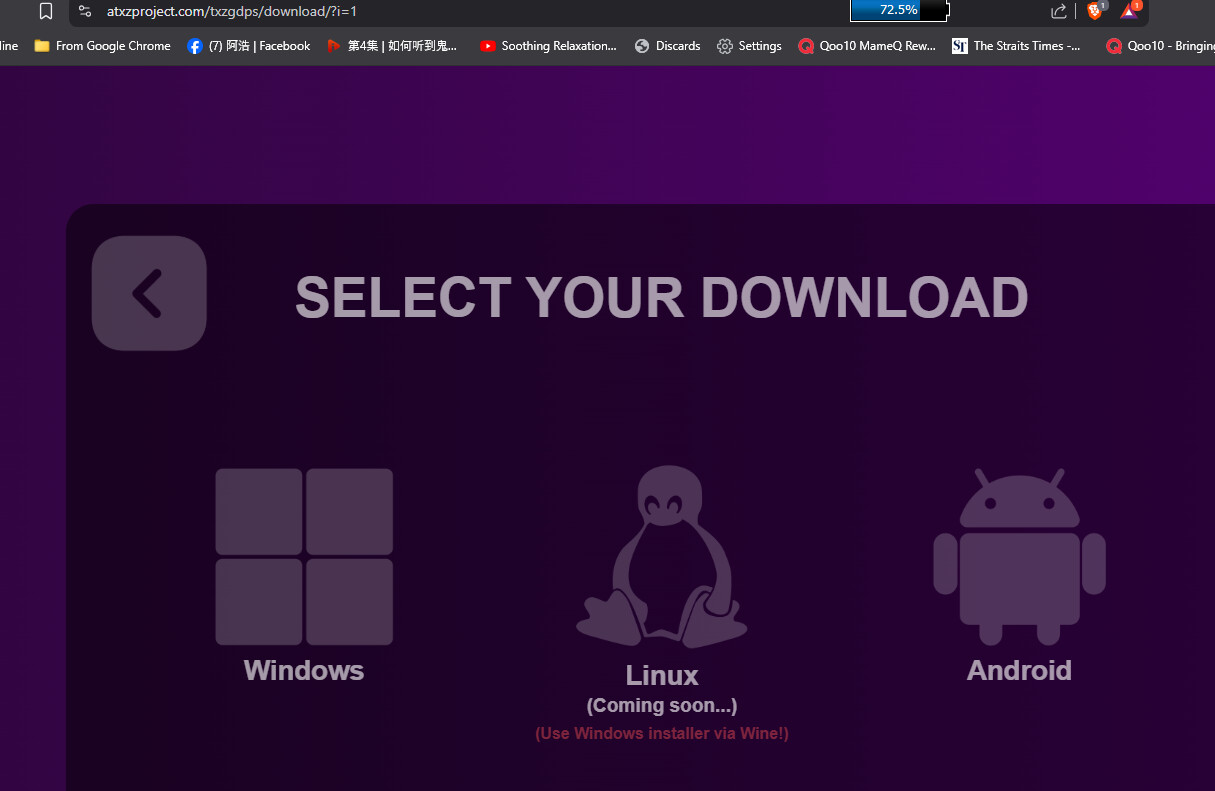
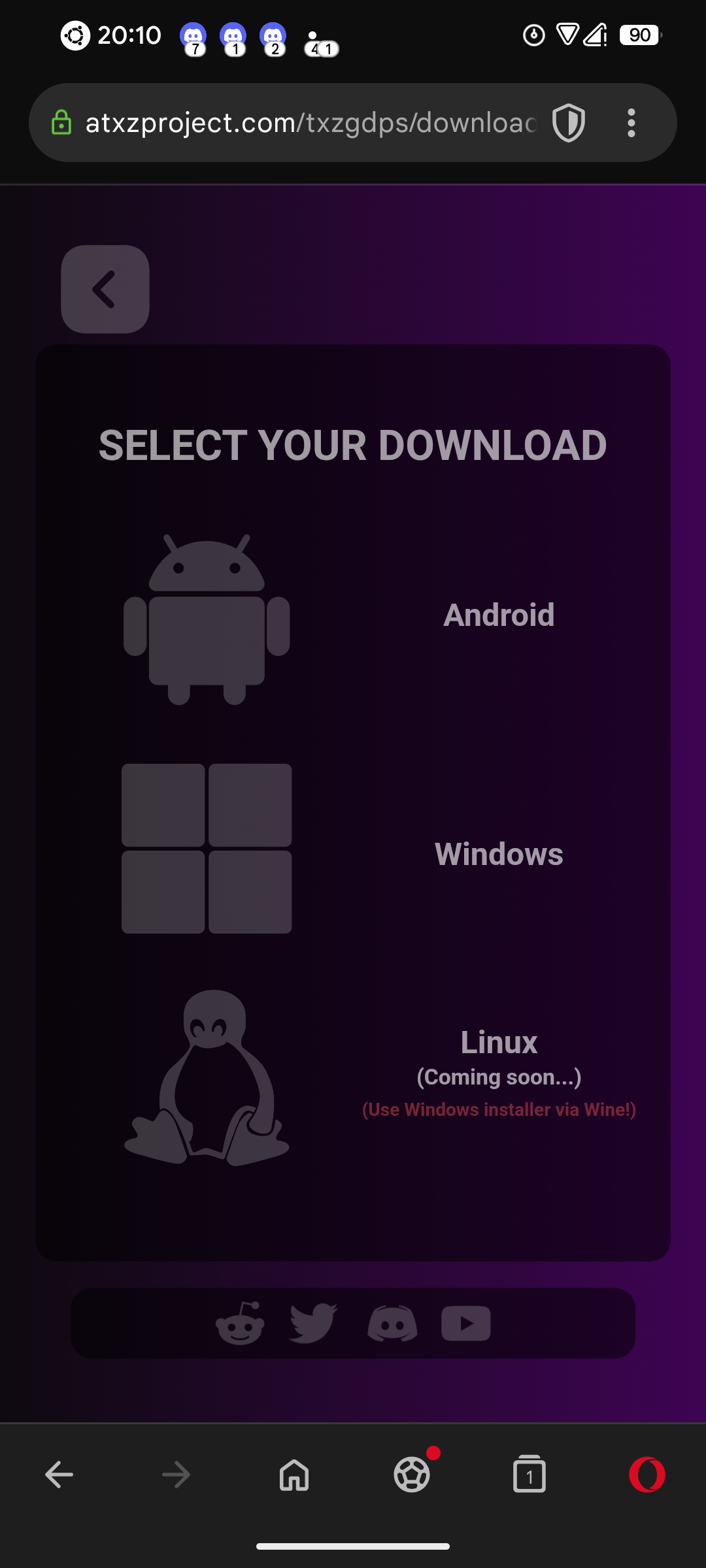
If you see both of my pages you will see it right, but for other people who already visited my page before, after I applied changes, the page shows so broken. If I’m in mobile, even worse, I delete the browser cache but it never shows the applied changes.

I go to Cloudfare > Website > Caching > Configuration, and I purge everything. Its been 24 hours and people is still telling me that the page is broken, even for me, I still clear browser cache in mobile and nothing changes.

I don’t know what I aw doing wrong here, I know that the page is not broken, if I install like a new browser and visit my website, the page shows everything right.

–Pictures–

My site in a recently installed browser: https://files.catbox.moe/7c48xz.png

My site in Chrome, where I already visited my site before the changes: https://files.catbox.moe/oriu4v.png

Is there a way to just make changes in the website and appears the changes to everyone in whenever time it should take? Since purging caché in Cloudflare doesnt take effect, or theres something wrong I am doing.

Other Information

(other information and details relevant to your question)

(other information and details relevant to your question)
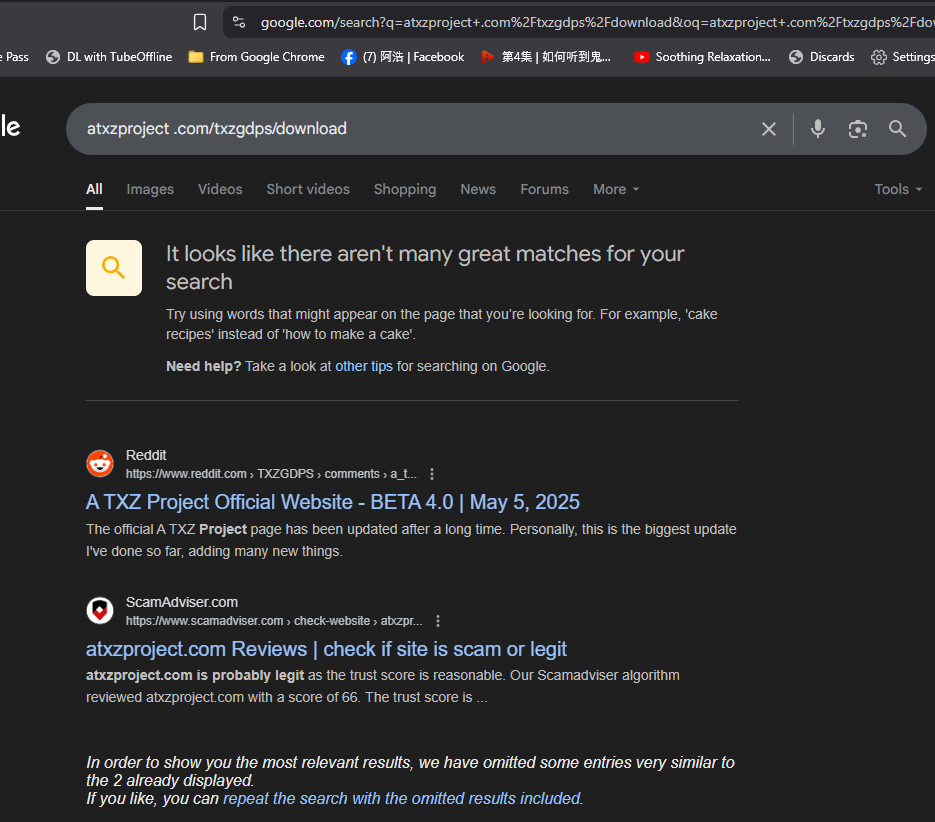
If you cannot be bothered to provide actual info, this is what I will see

If I use this instead

No issue.

Issue is likely on your end.

Take note of this function as well

If I’m not bothered to provide actual info? I tried to provide all the info I thought it was necessary!
I was writing this post in my mobile and it was difficult to begin (many bugs happened while typing, like deleting the double “Other Information” part, I just couldn’t. I’m writing this comment in my PC now).
About the URL, I missed that space between the .com and didn’t noticed after posting, so, sorry for that, but couldn’t you just delete the space instead of saying that I didn’t provide actual info?

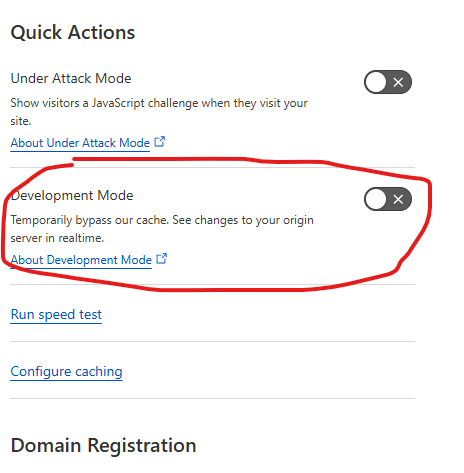
About the development mode, it actually updated the website in the browser I was using to test (Chrome), but I had to manually delete cache in the app settings so the changes being shown. Is that being applied to everyone who visits the website? Again, when I updated the website, I had people telling me that the site is still broken even after 1 day being updated. In cloudflare says that files must be purged after dev mode expires but at least in Chrome after manually deleting cache, the changes was still there.

Also, what do you mean by my “end”? Maybe my questions sounds like stoopid but I am just new in hosting websites and that stuff. I am just a guy who knows how to code in html, css and js, but still learning on how website hosting works. Thanks!*
*

So the cache is on Cloudflare not InfinityFree. There are settings on cloudflare you can change (including development mode) to reduce the cache.

But be aware that your browser also keeps a cache, so try clearing that before you change anything on cloudflare (Crtl+f5 works on most browsers) or use an incognito\private browsing window.

I found a solution and is nothing to do with Cloudflare or InfinityFree.

I just noticed that naming the files (like css and js files) the same after a new change, browsers just mix the old cache with the new changes applied, ending with a broken site (I always used the same name in a new update to my website).

I just had to rename the css and js files to something else (like style.css to style2.css), link the css and js files with the new name in html, and thats it! No need to clear cache.

Gonna use this method for now, idk why I didn’t knew about this thing before, it was too simple. I guess everyone here just commented without reading the whole post :confused:

Clearing your browser cache would have had the same effect

People commented because of your wrong info.

If you did

issue would not have happened in the first place.

Please take time to properly compose your statement/post. A lot a misunderstanding would be avoided this way

I clearly said this… twice.
Even that, won’t tell to each one “Oh, you must clear your browser cache” when they barely knows what cache even is, and just wants to download the thing in the downloads page I showed (I had too, someone asked me how to do that)
For people like this, the file renaming I mentioned works fine for what I need.

I think you’re pulling my leg at this point, what wrong information I am providing? If I did the cache clearing in my browser? I did, and I mentioned it, twice!
I re-readed the whole post again. Maybe I could have gone into more detail in the last paragraph, but I think I am providing the necessary info. I said I cleared cache in mobile browser, I said I cleared cache in Cloudflare settings… You just say that I am providing wrong info but don’t want to be clear enough. Please, point out the part where I provide wrong details, and I can see if you are actually right and I said something out of the place.

Please share how are you clearing the cache on your browser and Cloudflare.

It’s possible that you think you cleared the cache but didn’t, as I’ve just read the whole post and cannot think of a reason besides some weird caching.

In cloudflare as mentioned in main post:

I first tried with custom purge, adding the URLs where I was having the issues. Then I just purged everything. After that, I tried the developer mode that, it really applied the changes but not for long? I used a browser where the page was looking right and after reloading, it just broke.

Cache in PC browser:
Ctrl + F5 actually never worked for me (this isn’t the first time I have this caching issue) so the way I did to clear cache in browser was inspecting the page, then Network, then “Disable cache” and it just loads the page fine, and it stays good even after disabling it.

Cache in mobile browsers:
This is my fault here. I assumed that the only way to delete cache in mobile was literally in app settings. It is actually “Privacy & Security” then “Delete browsing data”. I have the options to delete cache there.

I needed a way for the user not needing to clear the cache since, the people that visits my page (that arent that many) just wants to go to the download page, download the thing, and just close the browser. The majority of people who visits the page doesn’t know what cache even is, and I just want to provide something comfortable.

For now, and I don’t know if this is the best practice to do it, is using a different name of the files after a new change (instead of style.css and script.js, I change it to something else, like style2.css and script2.js or whatever different name. Then relink it in HTML).

For front end users most browser cache is short lived (less than 24 hours) so unless they happen to be accessing your site while you’re changing something, they won’t be impacted.

Rather than change file names, you can use version numbers in the header. I’ve not done that myself but I’m told it works well.

A quick Google also suggests adding the following metatag to prevent browser caching


<META HTTP-EQUIV="Pragma" CONTENT="no-cache">
<META HTTP-EQUIV="Expires" CONTENT="-1">
to <head>

Just to check, are you hosting the files on infinity free or linking out to an external provider? Because file sharing sites are against the tos here, so you’d need to link out to another provider for the downloads

You say it’s not browser cache, but everything you’re explaining perfectly matches the behavior of browser cache.

The complicating factor here is that you have Cloudflare in between, which does it’s own caching. Multiple layers of caching can cause weird issues where you clear one layer of cache, which is then repopulated with another layer of cache.

In any case, to rule out caching, you could try doing the following at the same time:

  • Disable caching from your website by adding the following lines to your .htaccess file:
Header set Cache-Control "no-cache, no-store, must-revalidate" 	
Header set Pragma "no-cache" 	
Header set Expires 0 
  • Put Cloudflare in Development Mode.
  • Open a fresh browser window in Incognito Mode.

Now open the page, make some changes, save them, and refresh the page in the incognito window.

If this solves the issue, it means the issue was cache all along. But if it doesn’t, that still doesn’t fully rule out cache.